Projects Panel
Projects Panel
Section titled “Projects Panel”The Projects panel is where you see all your projects and create or manage them.
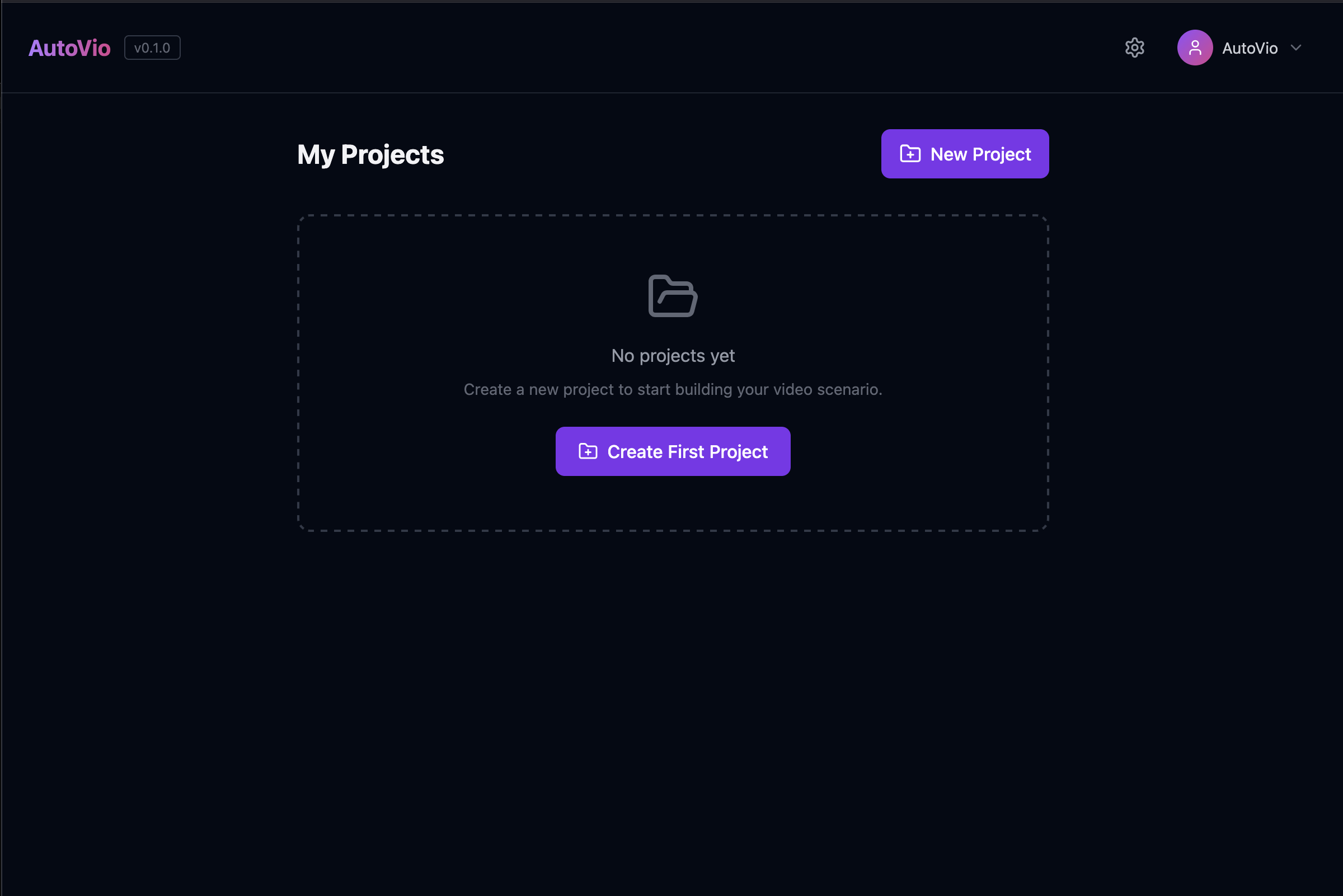
Projects list
Section titled “Projects list”- Lists all projects for the current user (name, last updated).
- Click a project to open it and see its works (video pipelines).
- You can create a new project with a New Project (or similar) button.
Create project
Section titled “Create project”When creating a project you set:
- Name — Display name for the project.
- Project type — Determines default prompts and style guide. Options:
blank— Photorealistic defaults, fully customizable.saas— SaaS product demos (UI/UX focused).news— News/media (broadcast journalism style).social— Social media/marketing (trendy, engaging).ecommerce— E-commerce products (product showcase).educational— Tutorials (clear, instructional).
Each project type comes with optimized system prompts, image/video instructions, and style guide presets.
After creation you can edit in Project settings:
- Style guide — Tone, color palette, tempo, camera style, brand voice, must-include / must-avoid. Used in scenario, image, and video generation.
- System prompt — Default scenario (LLM) system prompt.
- Knowledge — Extra context for the LLM.
- Analyzer prompt — Custom instructions for reference video analysis.
- Image / Video instructions — Default extra instructions prepended to image and video prompts.
Project assets
Section titled “Project assets”In project settings, the Project assets section lets you:
- Upload images, video, audio, or fonts (e.g. logo, watermark, product photos).
- List and filter by type (image, video, audio, font).
- Preview and delete assets.
- Analyze images with Vision AI to generate descriptions (for reference mode).
Assets can be used in two ways:
- Editor overlays — As image overlays on the timeline.
- Video generation — Select assets when creating a work and choose how to use them (see Init Step).
Templates
Section titled “Templates”Editor templates are defined at the project level. In the editor you can open the Templates panel to list, create, apply, or delete templates. See Templates.
See also
Section titled “See also”- Works Panel — Works inside a project
- Concepts: Projects & Works
- API: Projects, API: Assets