Step 3 - Scenario
Step 3: Scenario
Section titled “Step 3: Scenario”The Scenario step generates a scene-by-scene script for the video using the LLM.
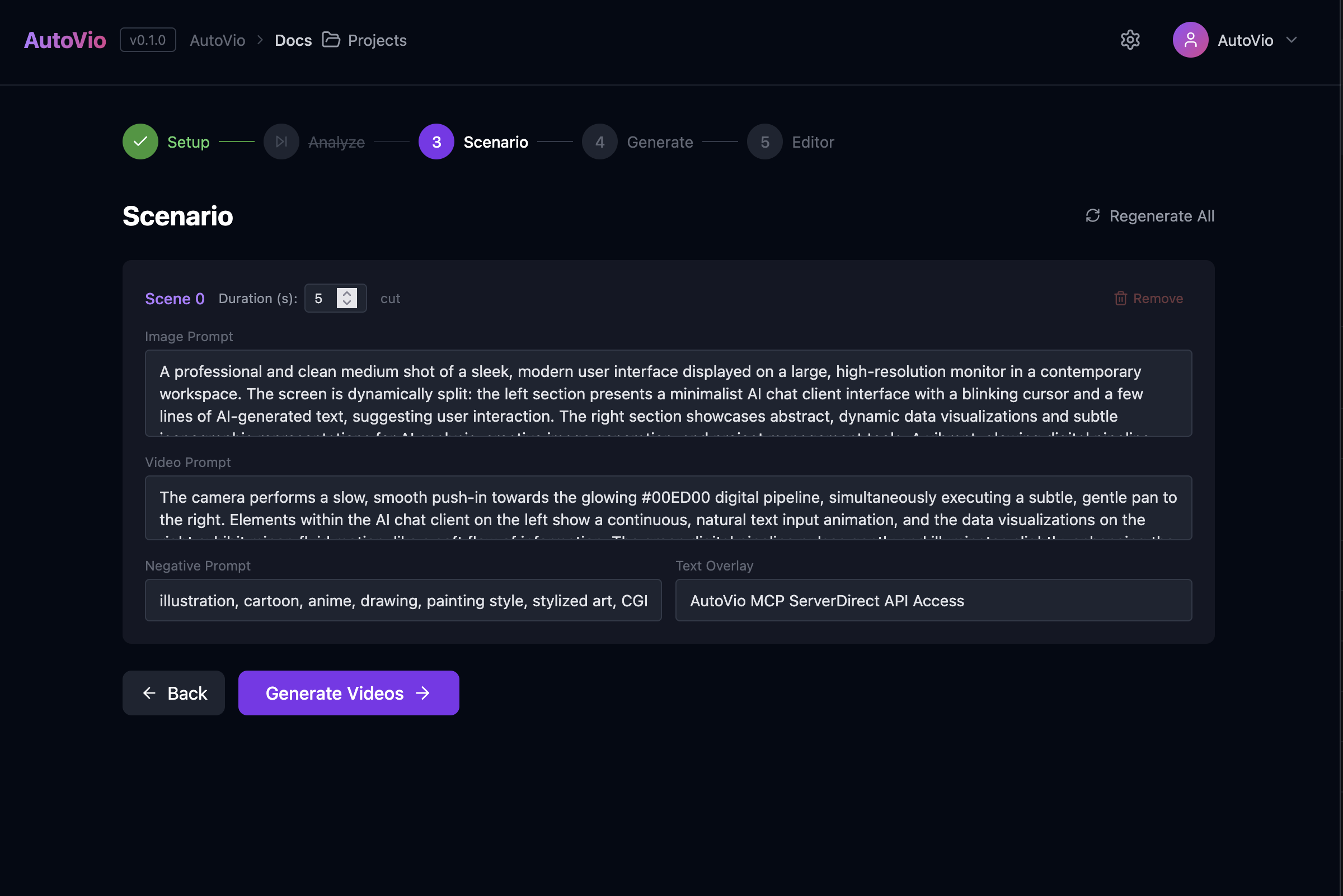
What you do
Section titled “What you do”- Click Generate scenario (or equivalent). The app sends analysis (if any), intent (mode, product, duration, scene count), optional system prompt, knowledge, and project style guide to
POST /api/scenario. - The LLM returns an array of ScenarioScene objects: for each scene,
image_prompt,negative_prompt,video_prompt,duration_seconds,text_overlay,transition. - You can edit any scene’s text in the UI before moving to generation.
Inputs
Section titled “Inputs”| Input | Description |
|---|---|
| Analysis | From Step 2 (reference video analysis). Optional. |
| Intent | mode, product_name, product_description, target_audience, language, video_duration, scene_count. |
| System prompt | Override for the scenario LLM (default from project type preset). |
| Knowledge | Extra context (from project or work). |
| Style guide | Project style guide; when present, appended as “Project Style Guide” in the system prompt. |
| Selected assets | Asset IDs selected in Init step. |
| Asset usage mode | reference or direct. |
Asset context in scenario
Section titled “Asset context in scenario”If assets are selected:
- Reference mode: Asset descriptions are appended to the system prompt, instructing the LLM to match their visual style in image prompts.
- Direct mode: The LLM is instructed to create exactly N scenes (one per asset). Image prompts describe the existing photos rather than generating new content.
Output
Section titled “Output”Each scene has:
scene_index,duration_secondsimage_prompt— used for image generationnegative_prompt— what to exclude from the imagevideo_prompt— motion/camera for image-to-videotext_overlay— optional on-screen texttransition— e.g. cut, fade, dissolve
Default behavior
Section titled “Default behavior”The default scenario system prompt depends on the project type (see Scenario Prompt):
| Project Type | Default Style |
|---|---|
blank | Photorealistic (generic) |
saas | Modern UI/UX, software demos |
social | Trendy, engaging social media |
ecommerce | Product-focused, clean visuals |
news | Broadcast journalism, professional |
educational | Clear tutorials, step-by-step |
Image prompts are written like “photo of…”, “shot on…”; video prompts describe realistic motion. When a style guide is provided, it takes precedence.
Next step
Section titled “Next step”In Step 4: Generate you generate an image for each scene from image_prompt, then a video from that image using video_prompt.
See Step 4: Generate and System Prompts: Scenario.