Templates
Templates
Section titled “Templates”Editor templates are project-level reusable overlay compositions. You save the current editor’s text and image overlays (and optionally export settings) as a template, then apply it to any work in the same project.
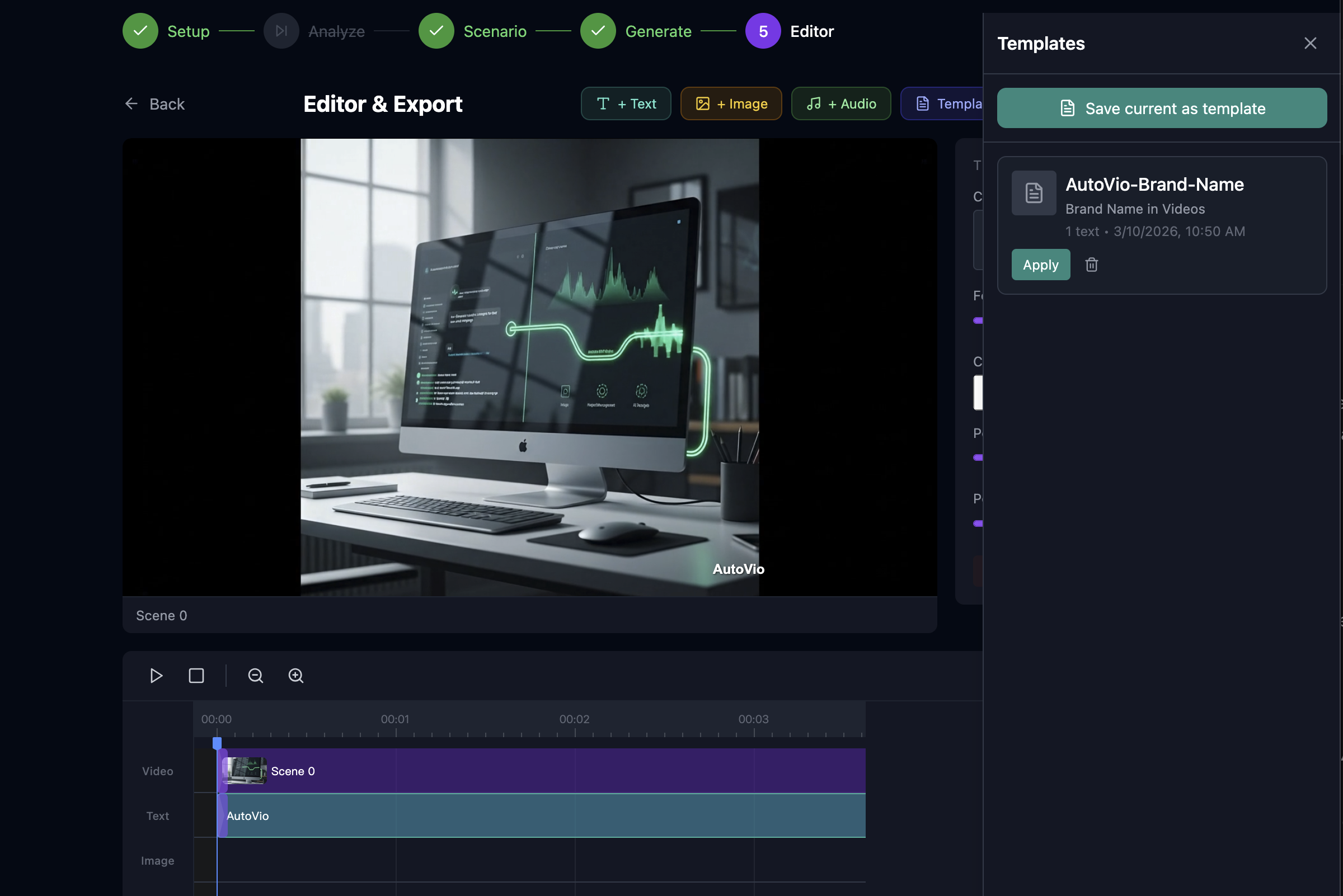
Save as template
Section titled “Save as template”- In the Editor step, arrange text and image overlays and optionally set export settings.
- Open the Templates panel and choose Save current as template.
- Enter name, optional description and tags. The template stores:
- Text overlays — content, font size, color, position, timing (relative or absolute).
- Image overlays — assetId, size, position, opacity, rotation, timing.
- Export settings (optional) — width, height, fps.
Templates are stored in MongoDB; list/create/update/delete via the UI or Templates API.
Apply template
Section titled “Apply template”- In the Templates panel, pick a template and click Apply.
- You provide video duration (so relative timing can be converted to seconds) and optional placeholder values (e.g.
product_name→ “EcoBottle”). - The backend returns merged text overlays, image overlays, and track actions; the frontend merges them into the current editor state and can update export settings.
Placeholders
Section titled “Placeholders”Templates can contain placeholders in text, e.g. {{product_name}}. When applying, you pass placeholderValues: { product_name: "My Product" } and the backend replaces them. If an overlay references an image asset that no longer exists, the apply result may list missingAssetIds.
Timing
Section titled “Timing”- Relative — Stored as percentage of video duration (e.g. startPercent, endPercent). On apply, converted to seconds using the work’s video duration.
- Absolute — Stored as startSeconds, endSeconds. Applied as-is (or scaled if the implementation supports it).
See also
Section titled “See also”- Step 5: Editor — Timeline and overlays
- API: Templates — List, create, get, update, delete, apply